Documentation

The Complete Mawaeed Guide

Everything you can do with Mawaeed and exactly how to do it, from your first login to multi-branch teams, group classes, table reservations, car rentals and guesthouse stays. Every step with a real screenshot.

Getting started

From zero to a live booking page in about five minutes.

1

Create your account

Sign up with your email and a password, then confirm your email from the branded link we send you. Once verified you land straight in the setup wizard. No payment details needed to start.
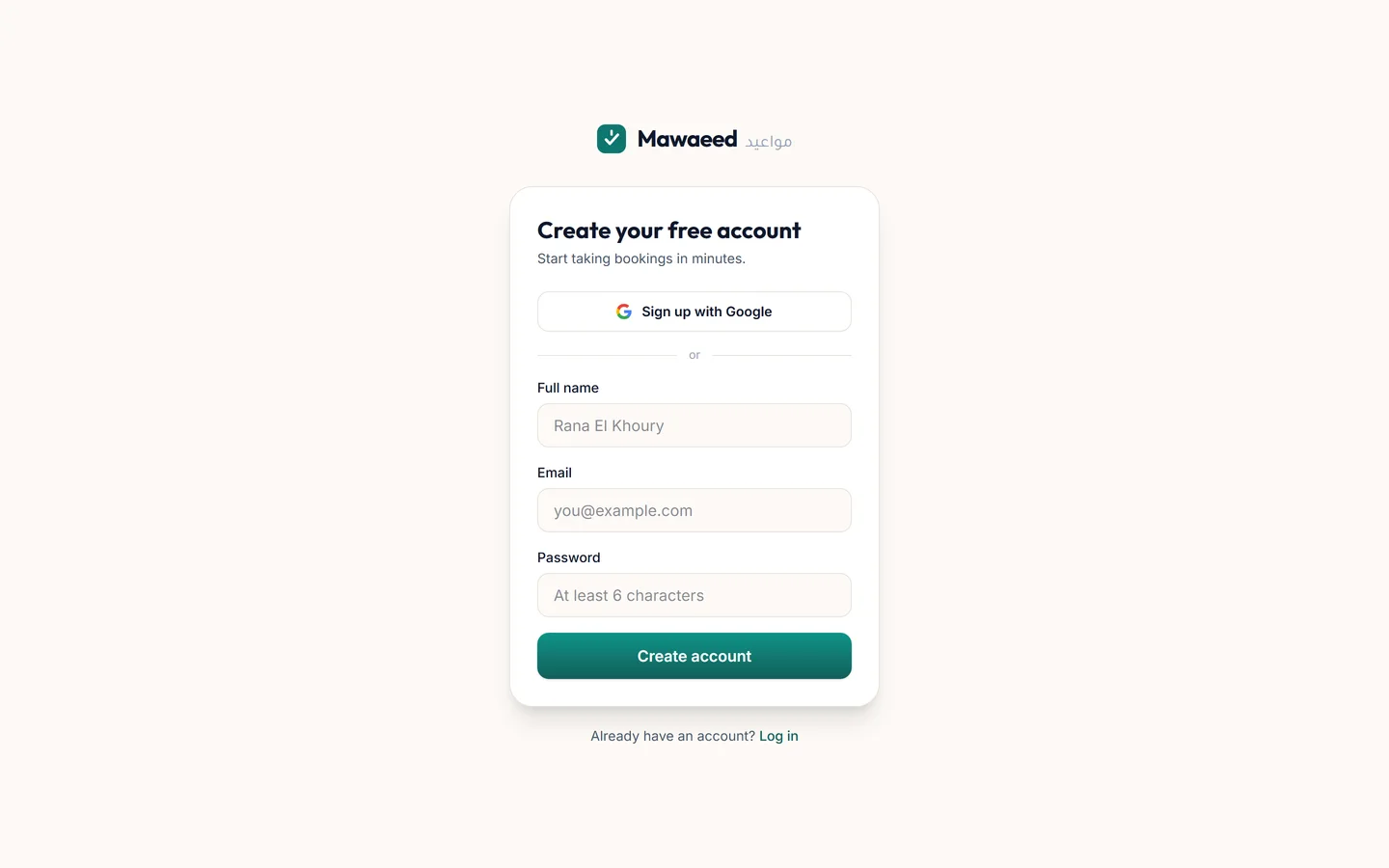
The Mawaeed signup page

Tips

  • Check spam if the confirmation email doesn't arrive within a minute
  • Use the email you actually read: booking alerts go there too
2

Set up with the onboarding wizard

Pick your industry (salons, barbers, padel courts, clinics, restaurants, car rental, guesthouses and a dozen more), name your business, add your WhatsApp and city, list a few services with prices, set your weekly hours and how you get paid. Publish, and your page is live at your-name.mawaeed.io with a professionally designed template for your industry, with real images, sections and copy included.

Tips

  • Everything you enter here is editable later, so don't overthink it
  • The industry you pick decides your starter template AND how booking works (appointments, table reservations, or rentals)
3

Meet your dashboard

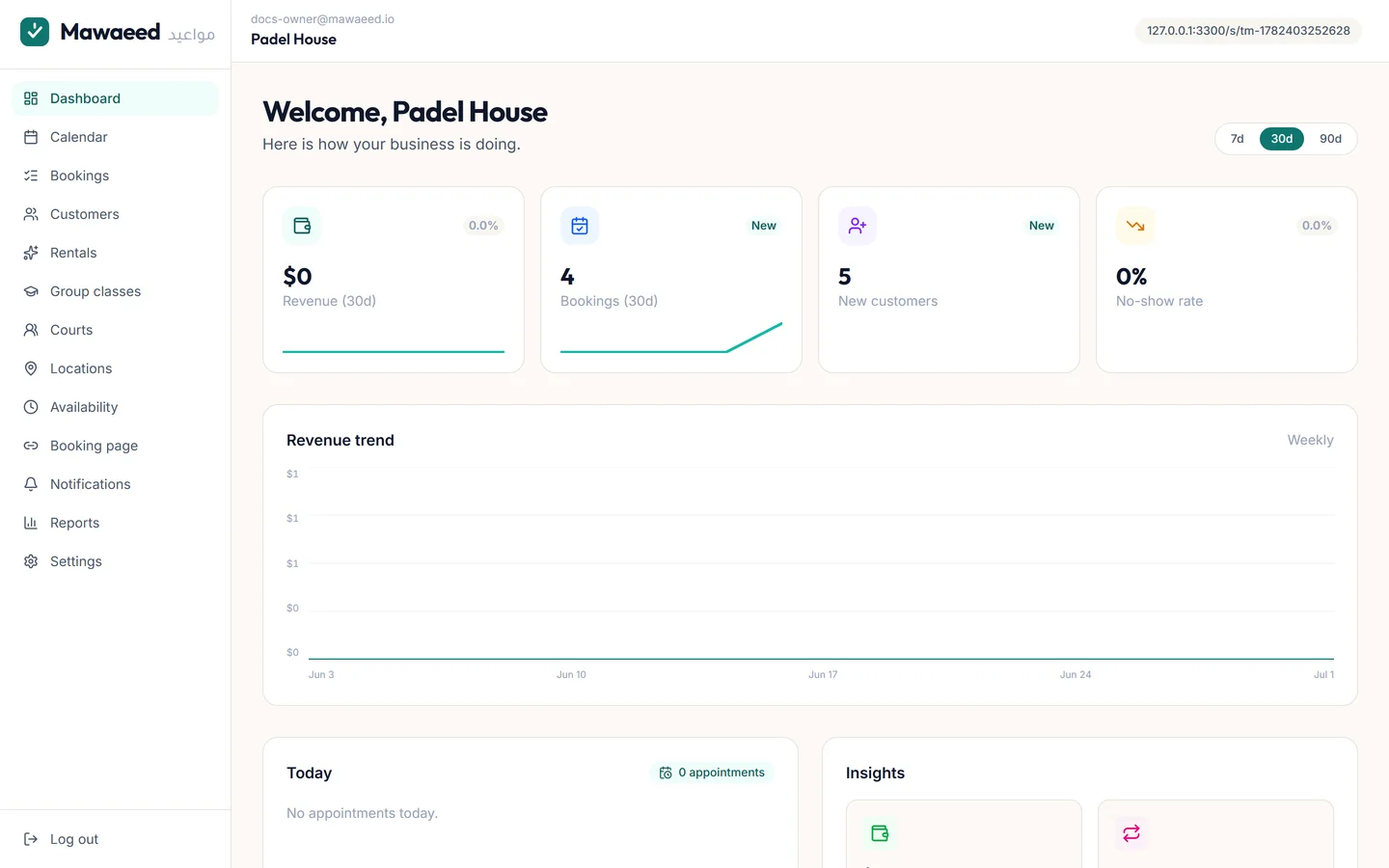
The dashboard is your daily home: revenue and booking KPIs for the last 7/30/90 days, the revenue trend, today's appointments, and insights. Everything you manage lives in the left menu: calendar, bookings, customers, services, classes, staff, locations, your booking page, notifications, reports and settings.

The Mawaeed operator dashboard with KPIs and revenue trend
4

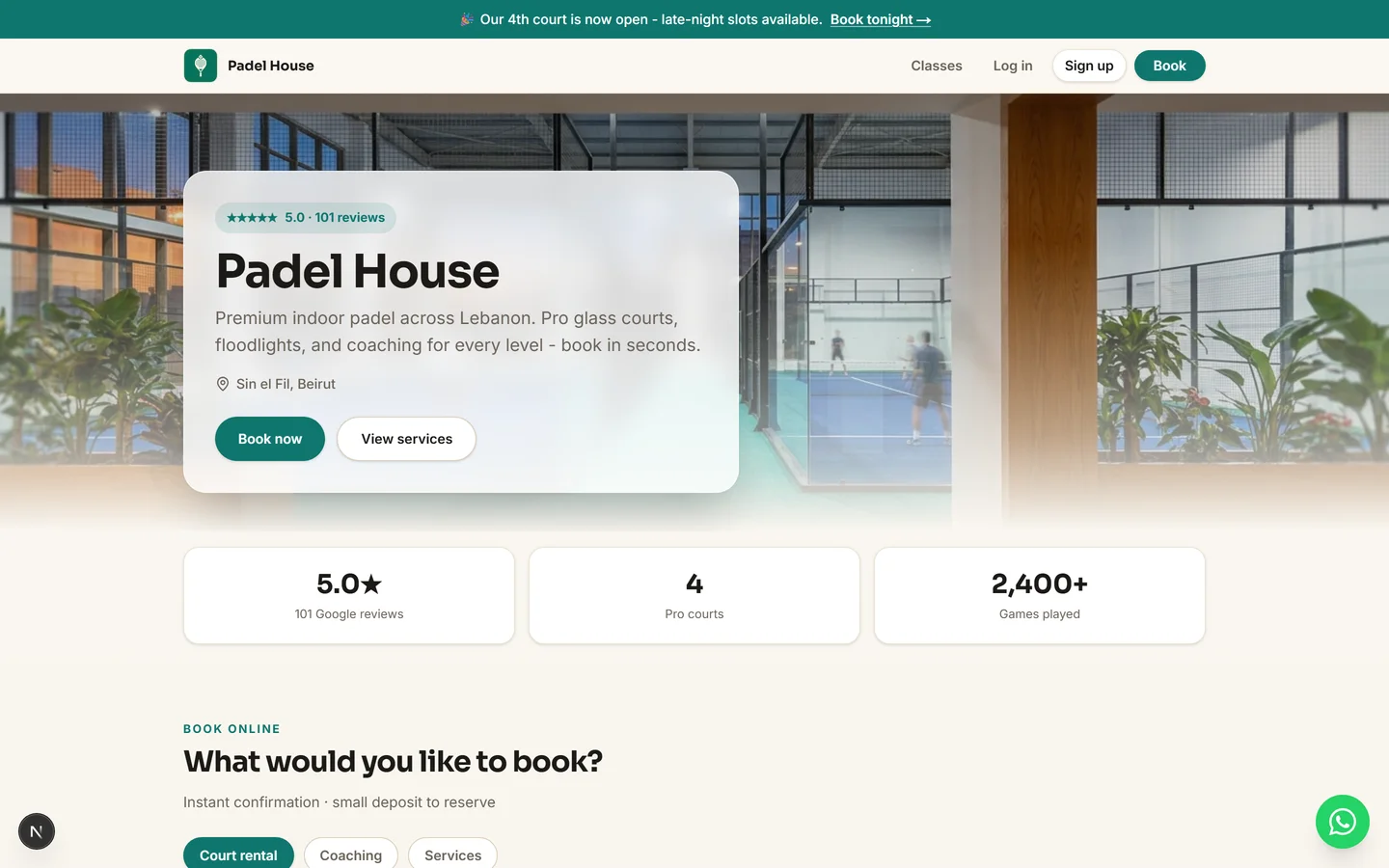
Your live booking page

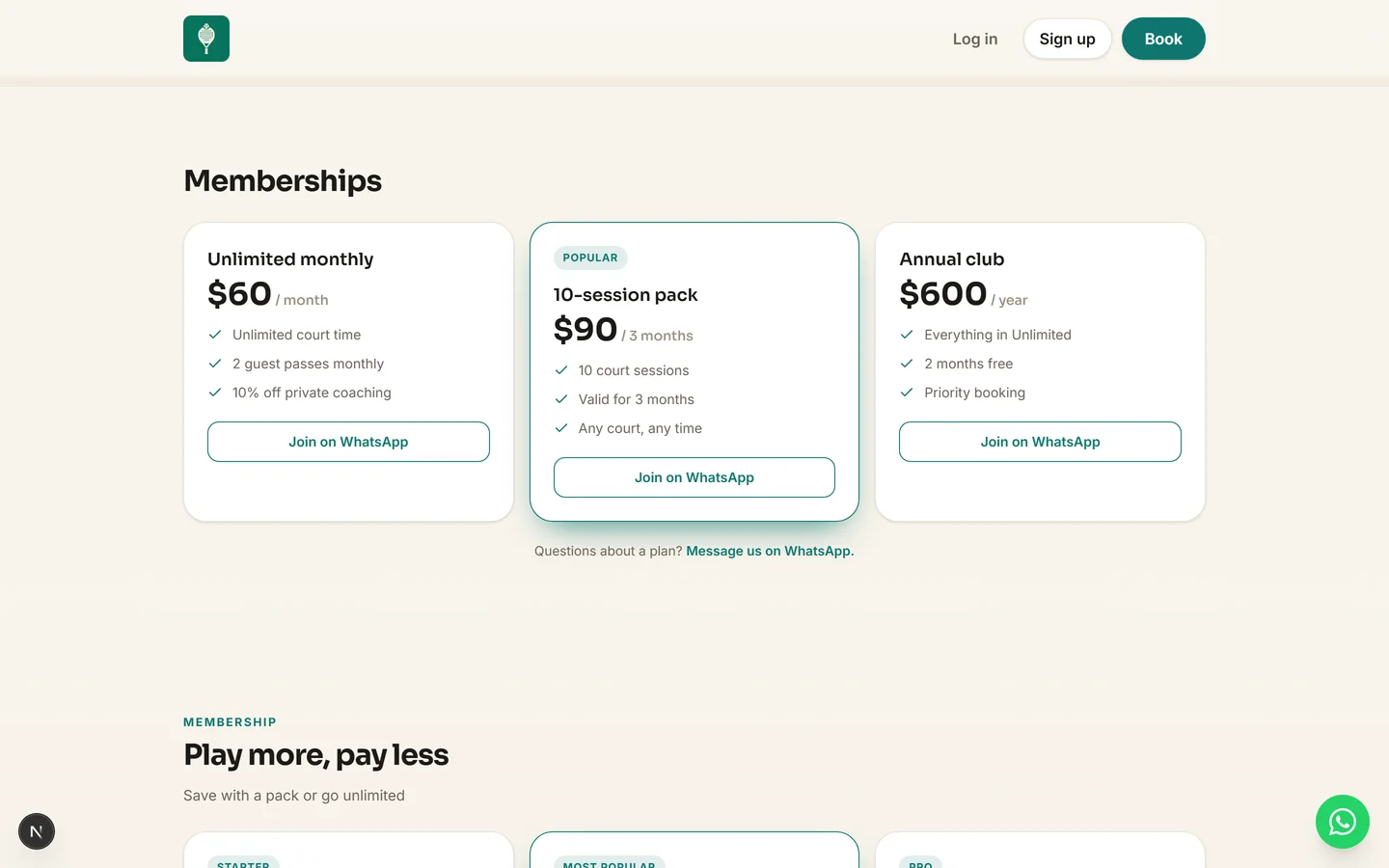
Customers see a fast, polished site with your branding: hero, services with Book buttons, packages, team, gallery, reviews, FAQ, locations and a floating WhatsApp button. Share the link everywhere: Instagram bio, WhatsApp status, Google Business profile.

A live Mawaeed booking page (Padel House demo)

Tips

  • The "View page" button in the dashboard always opens your live site
  • Booking works instantly, so try a test booking yourself from your phone

Design your page

The Studio editor gives you full control over how your page looks: no code, live preview.

1

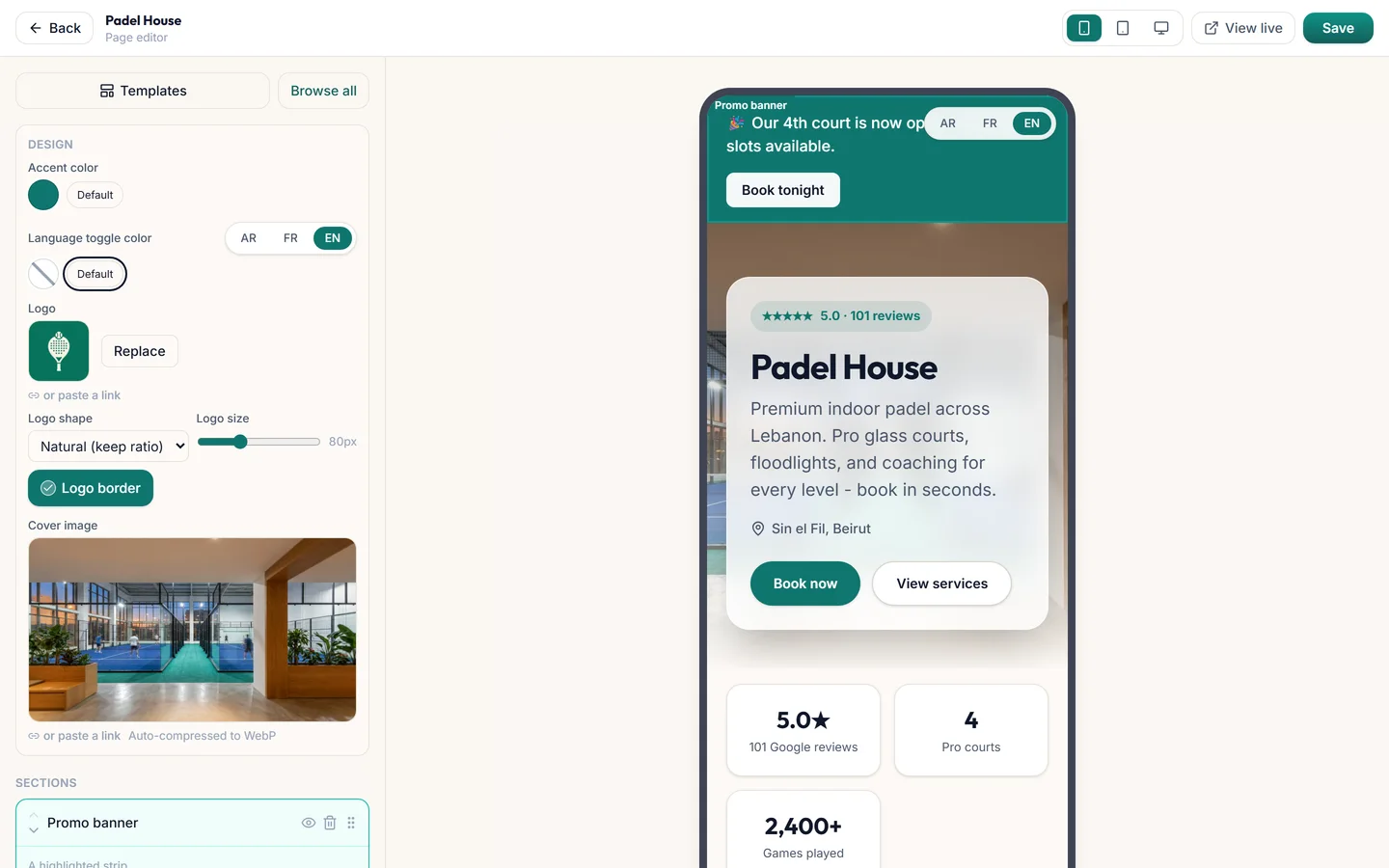
Open the Studio editor

Booking page → Edit (or /studio) opens the editor: your page's sections listed on the left, a live preview on the right. Add, hide, reorder and edit any section and watch the preview update as you type. It's desktop-only, so you can design comfortably on a big screen.

The Studio editor with section list and live preview
2

Switch templates

Every industry ships with three designed layouts: Classic (rich landing page), Split (modern split hero) and Editorial (centered, type-led). Apply any of them from the Templates tab; your services, prices and hours stay untouched, only the design changes.

Tips

  • Applying a template replaces your section arrangement. Your business data is never touched
3

Edit sections and pick variants

Each section has multiple layouts you can switch between: 4 hero styles, 7 service layouts (cards, tabs by category, grouped lists, category cards, a photo showcase…), 3 gallery styles including an auto-sliding strip, 3 team styles, carousel or grid reviews, and more. Every section takes an eyebrow, heading and subtitle, and the About section supports amenity chips (emoji welcome: 🚿 🅿️ ❄️).

Service categories shown as tabs on the booking page
4

Brand it

Set your accent color and it flows through the whole page: buttons, links, section highlights, the booking modal. Upload your logo (square badge or natural shape), choose the cover image, and tune per-section button colors when you want something special.

5

Announcements and extras

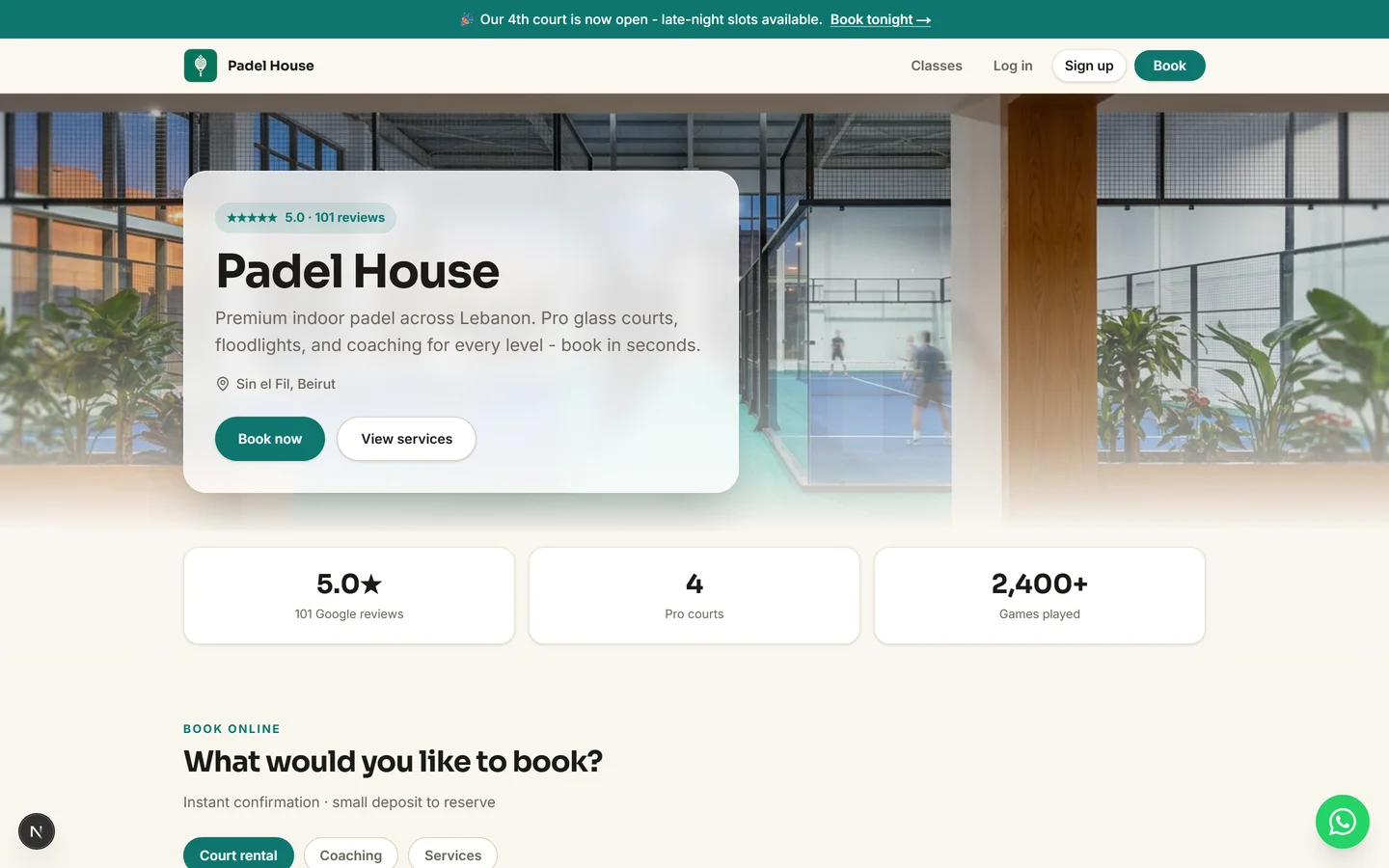
Add a Banner section and it renders as a full-width announcement bar above your header ("🎉 Our 4th court is now open. Book tonight →"). Other high-impact extras: the Instagram grid, team bios, an FAQ with your real policies, and customer reviews.

Tips

  • The announcement CTA opens the booking modal directly
  • Keep 5-7 sections for the best first impression. You can always add more

Services, staff & branches

What can be booked, who provides it, where, and when.

1

Manage your services

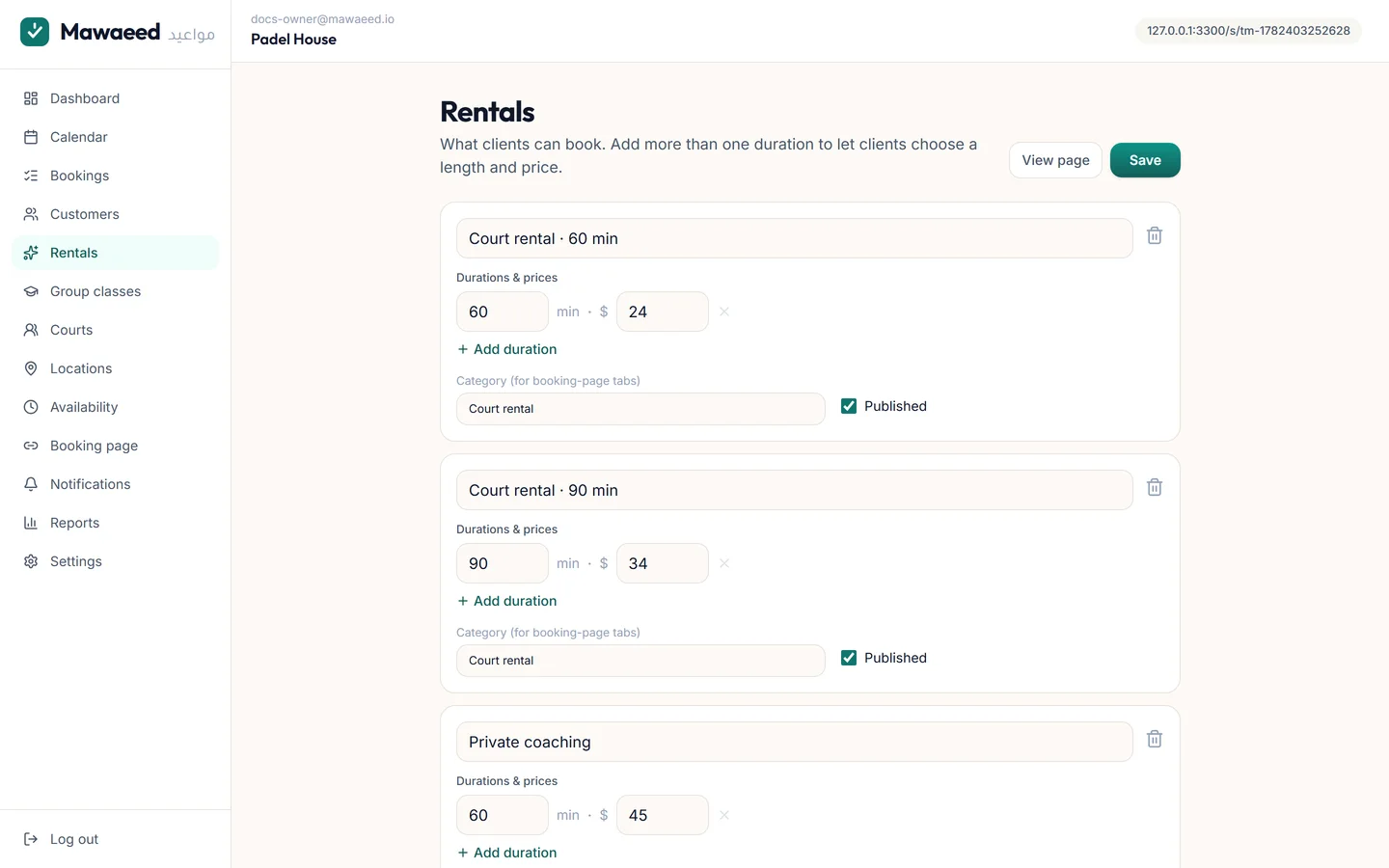
Services is the menu customers book from: name, one or more durations with prices, an optional category, a photo, and a Published toggle. Categories power the fancy service layouts: tabs, grouped lists and category cards group by them automatically. Add a photo per service and the showcase layout turns your menu into photo cards, perfect for rooms, cars and courts.

The services editor with durations and categories
2

Offer multiple durations

One service can have several lengths at different prices: a massage at 30/60/90 minutes, a court for 60 or 90. Click "Add duration" on any service. Customers get a "How long?" choice when booking, and the calendar automatically offers correctly-sized slots for the length they picked.

Tips

  • The first duration is the default shown on your page
  • Deposits computed as a percentage follow the chosen option's price
3

Add your team

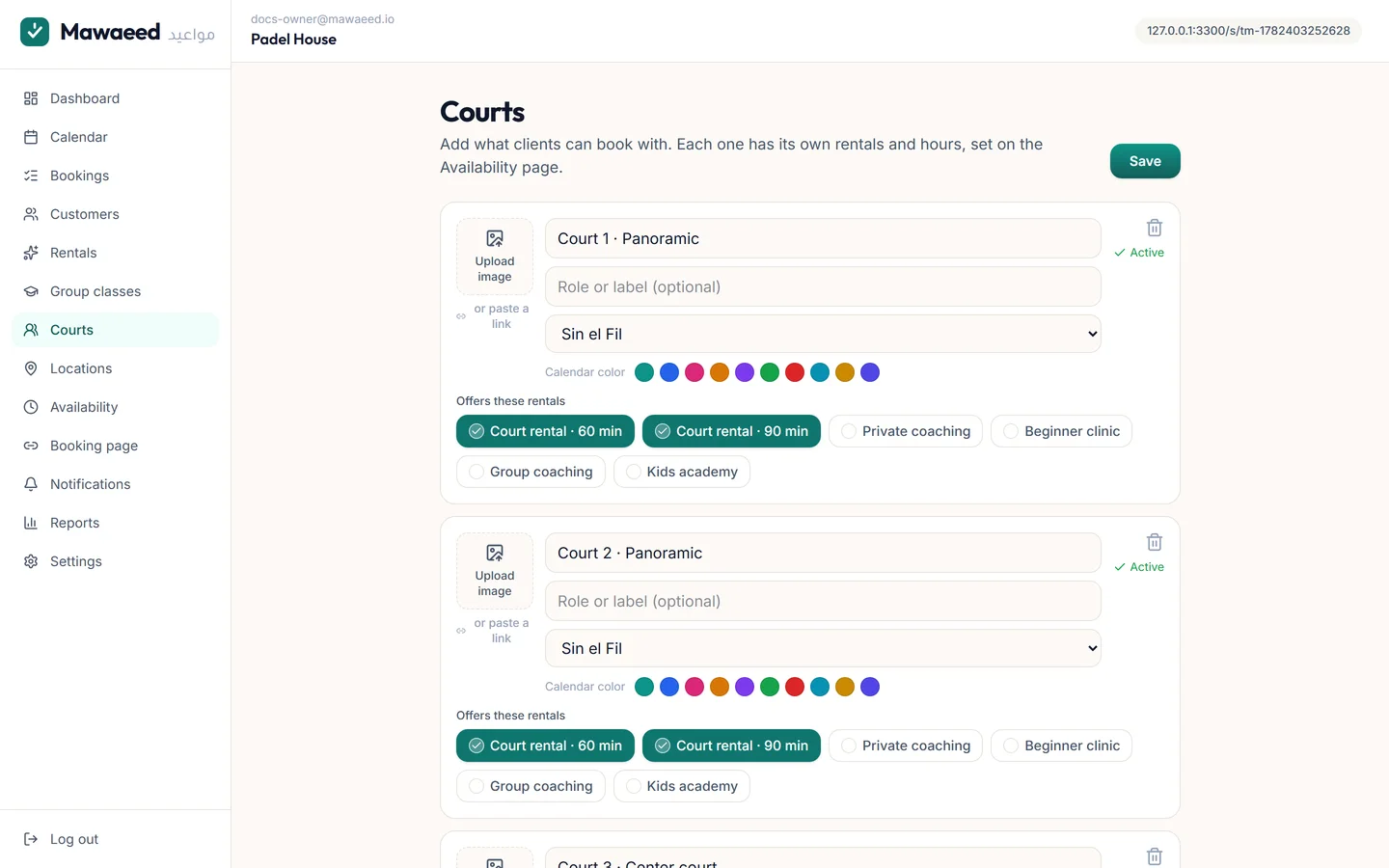
Staff hold the calendars: every staff member (or court, chair, bay: whatever your "resource" is) gets their own bookings, calendar color, photo, and the list of services they perform. Customers who book "any available" are placed automatically with whoever is free.

The staff manager with services and locations per member
4

Run multiple branches

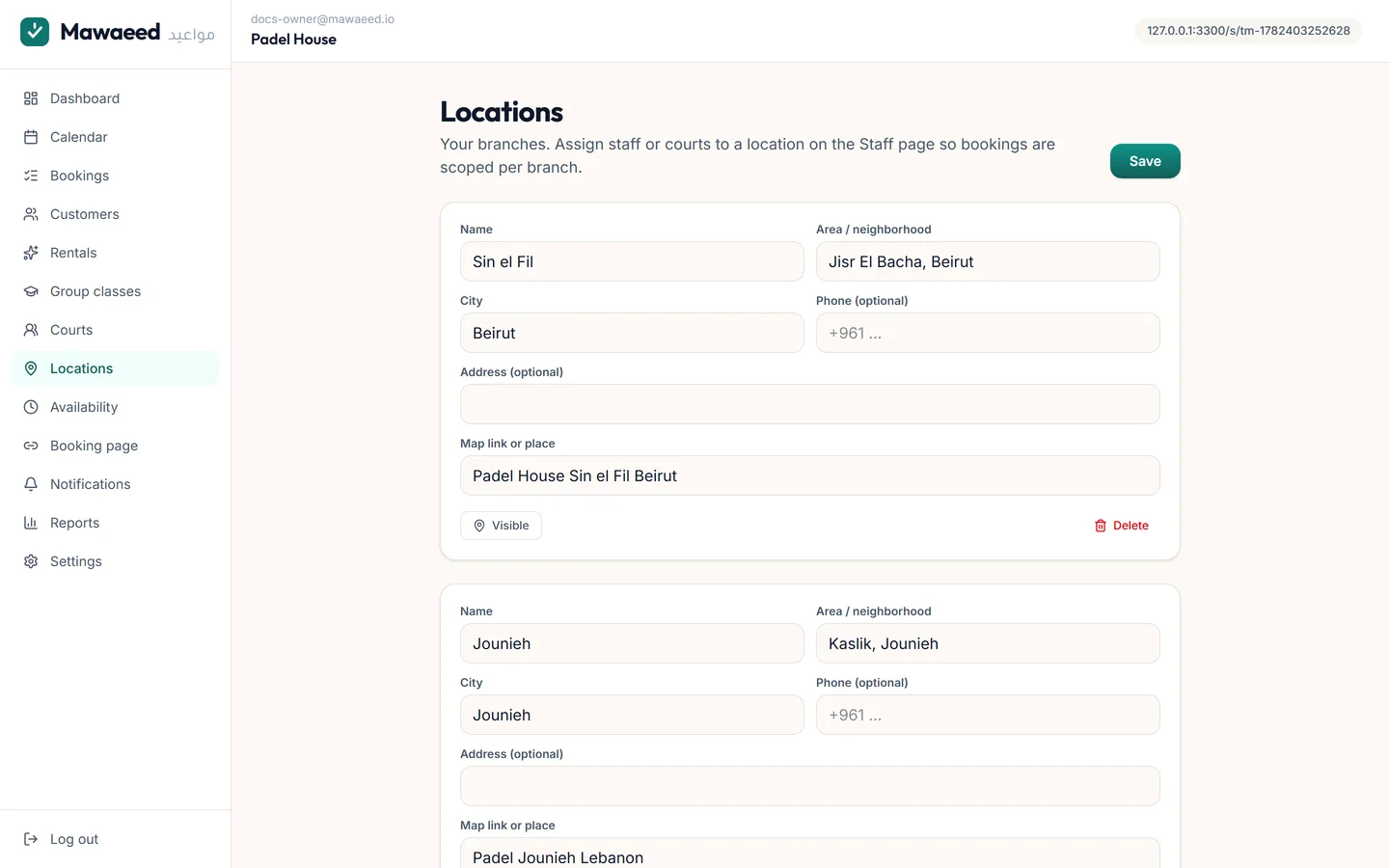
Add your locations under Locations (name, area, map link, phone) and assign each staff member or court to a branch on the Staff page. Customers pick their branch in the booking modal and only see times that branch can actually serve. A Locations section on your page shows each branch with its own map and Book button.

The locations manager with branches
5

Set weekly availability

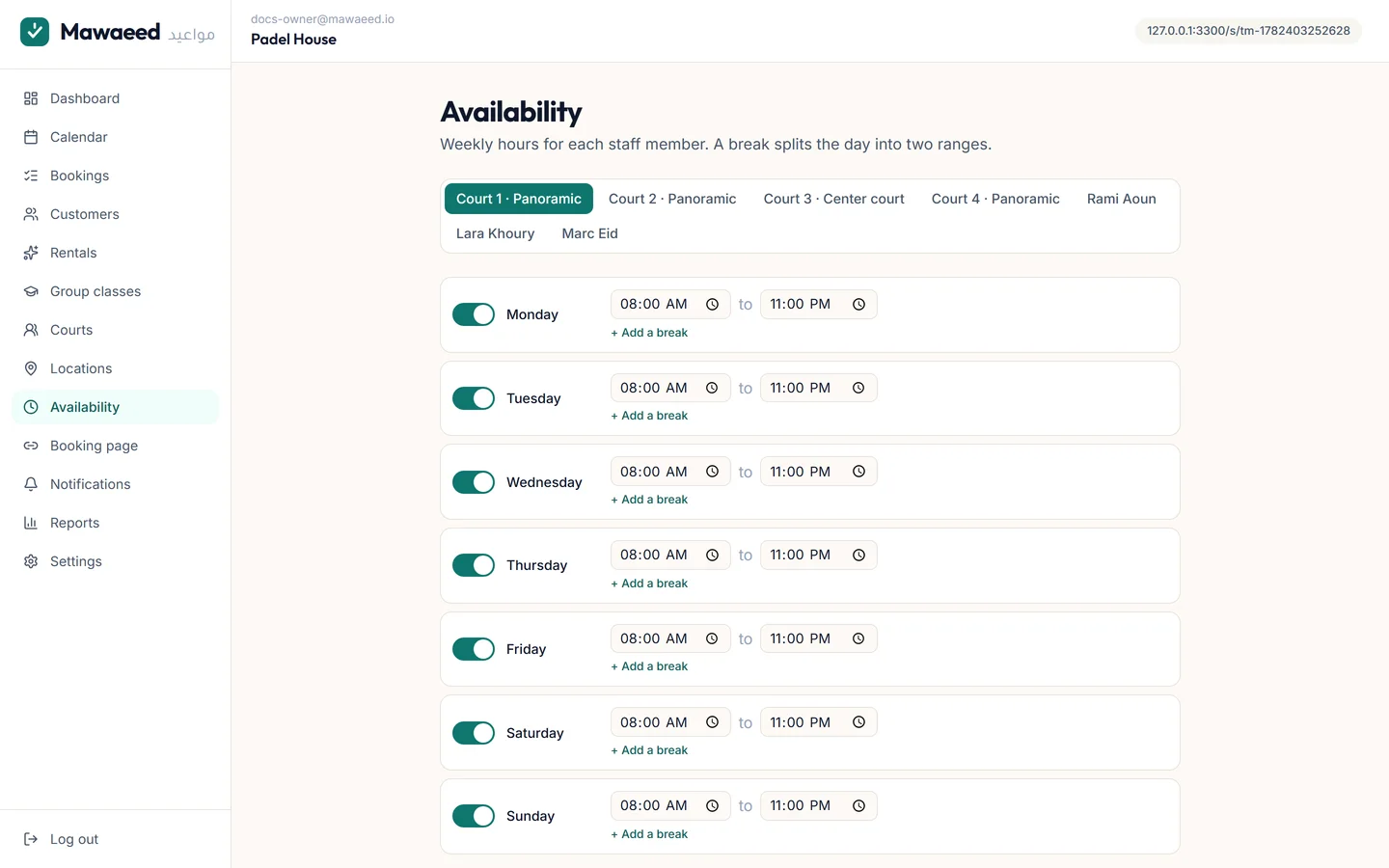
Availability defines the bookable hours per staff member, including split shifts (morning + evening with a lunch break). Add exceptions for holidays and time off; those days simply stop offering slots.

The weekly availability editor

Bookings & calendar

Where appointments live: the list, the calendar, walk-ins, and the automatic reminders that kill no-shows.

1

The bookings list

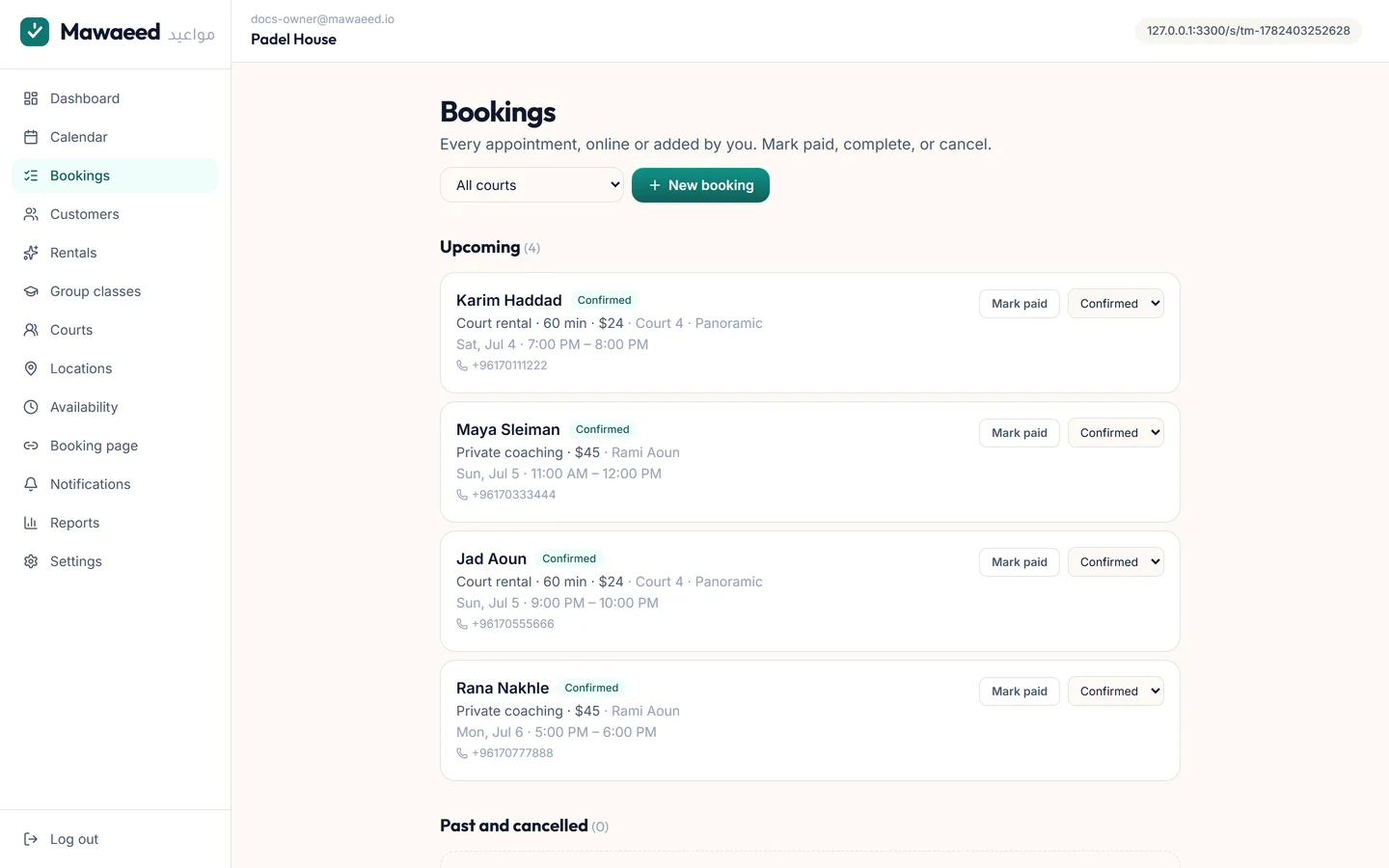
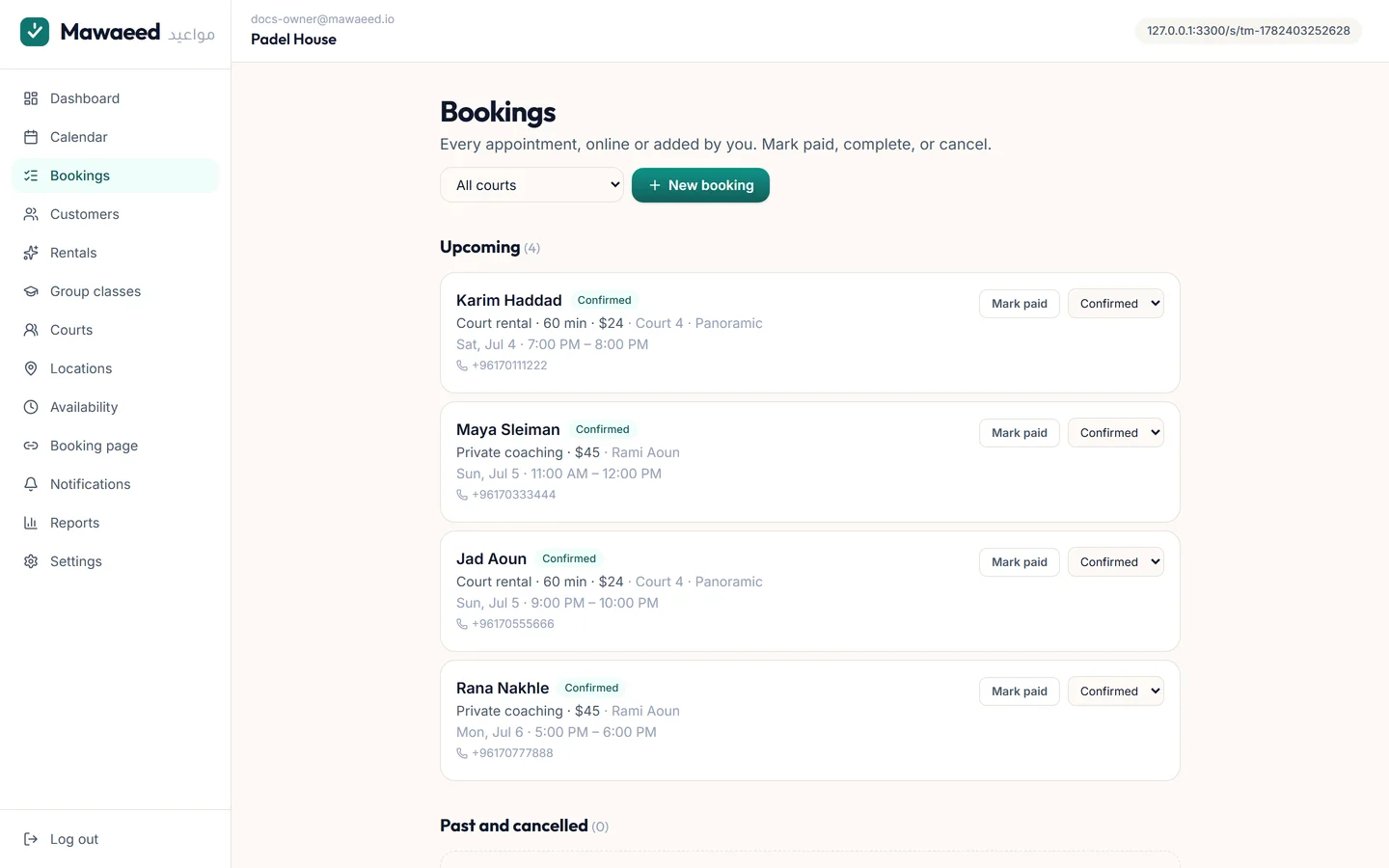
Every booking with its status (confirmed, completed, cancelled, no-show), searchable and filterable. Open any booking to see the customer, service, price and notes, mark it paid or completed, or cancel it.

The bookings list with statuses
2

Add bookings yourself

Phone call? Walk-in? Hit "New booking", pick the service, staff, date and time, and type the client's name, or attach an existing customer from the directory. Operator bookings can bend the rules (book outside notice windows) because you know your business.

The operator new-booking modal
3

Live calendar + Google Calendar sync

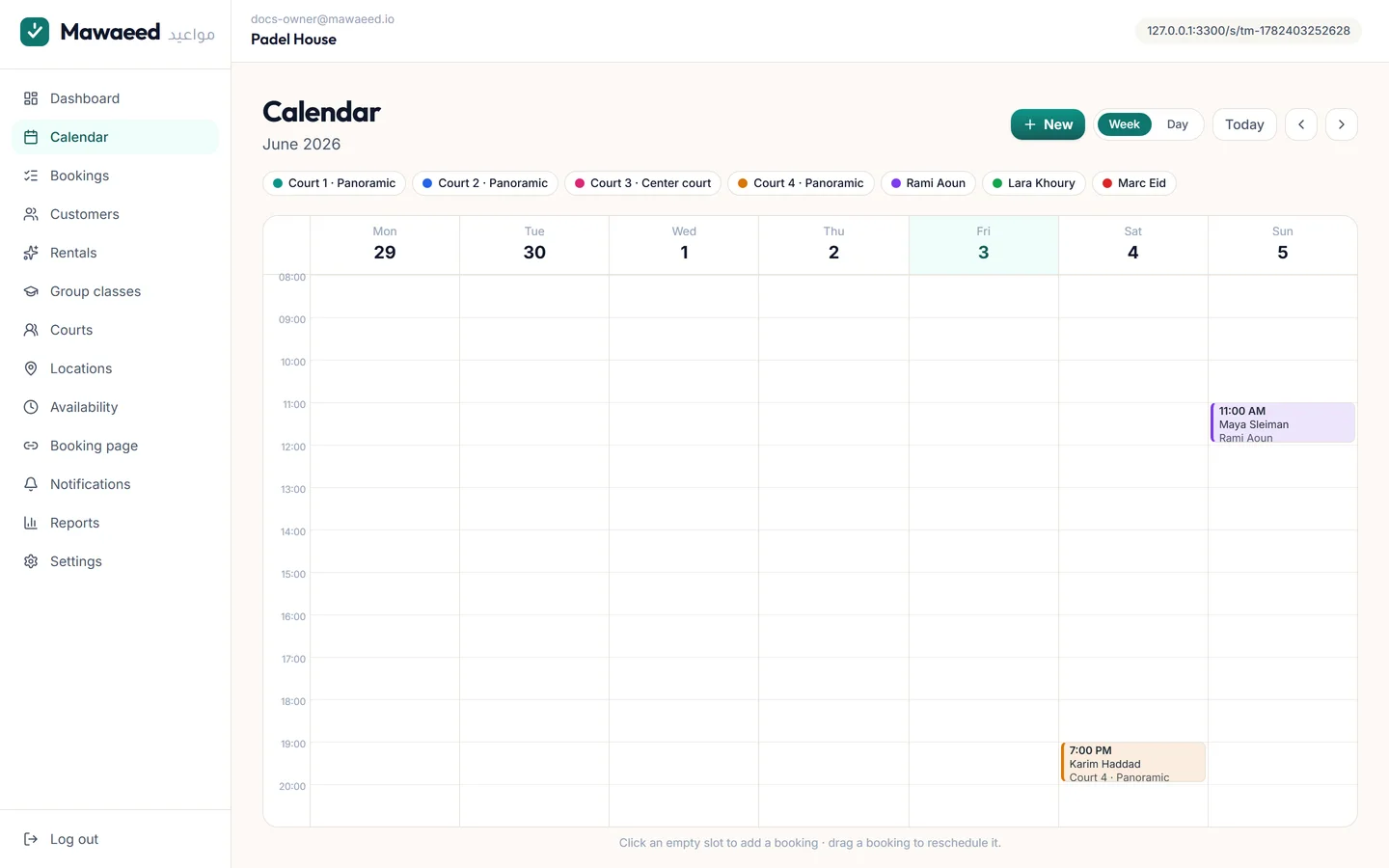
The calendar shows everyone's day and week, color-coded per staff member. Connect Google or Microsoft under Settings and every booking is pushed to the staff calendar automatically: created, rescheduled and cancelled.

The calendar with color-coded staff bookings
4

How customers book

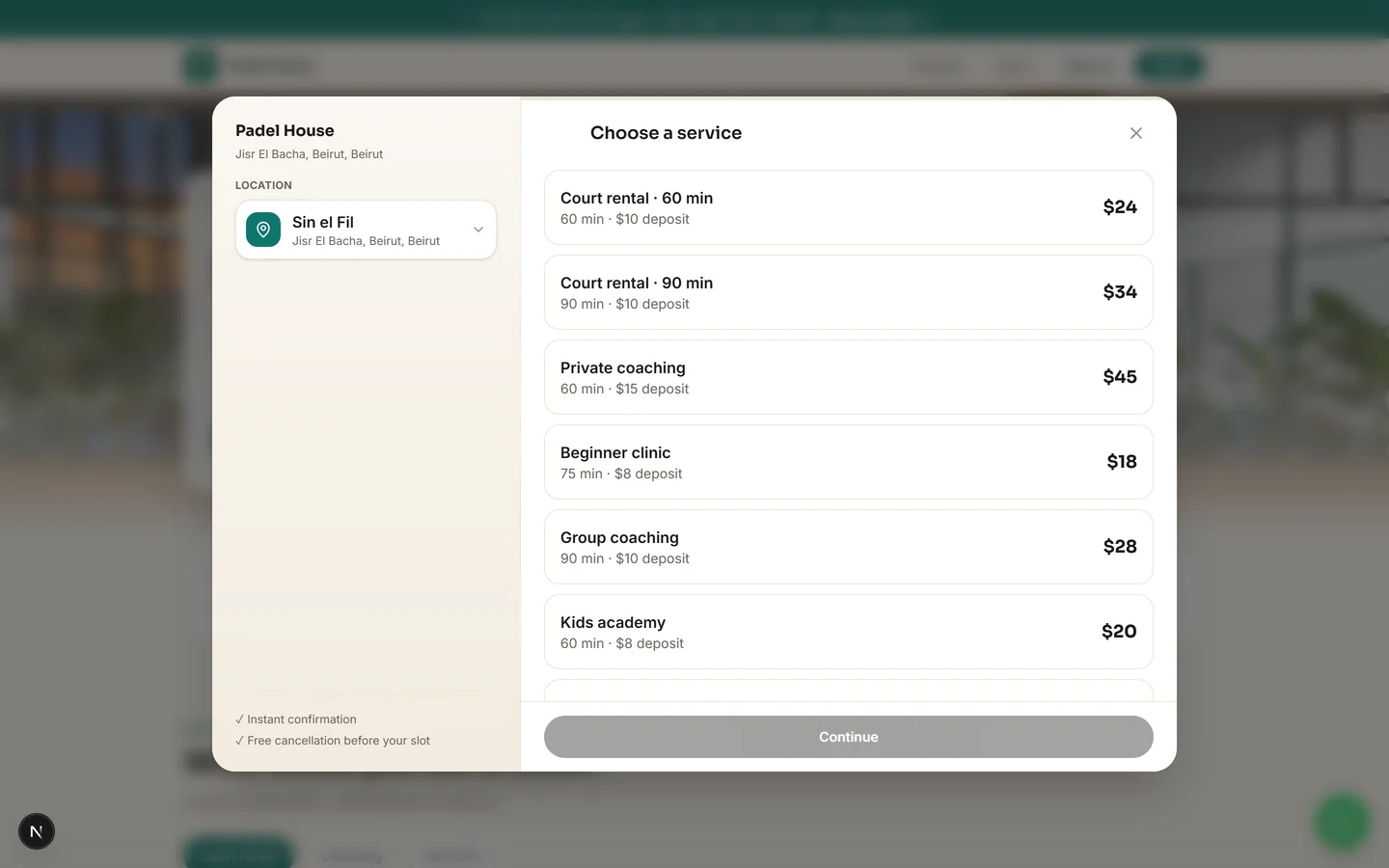
Any Book button opens a fast modal: pick a service (and length), a day and time, enter name + WhatsApp, confirm. Deposits you configure are shown upfront. The confirmation carries a manage link where clients can cancel or reschedule themselves within your rules.

The customer booking modal on a live page
5

Collect deposits over Whish

Add your Whish number and account name under Settings → Payments, and every booking that takes a deposit ends with a payment panel: your Whish details and the exact amount with copy buttons, an "Open Whish" shortcut, and a WhatsApp button so the client sends you the payment confirmation directly. You confirm receipt in your own Whish app; no bank account or card machine involved.

Tips

  • Cash on arrival always works too. The deposit just makes flaking expensive
  • Set deposits globally in Settings or per service, fixed or percentage
6

Automatic reminders

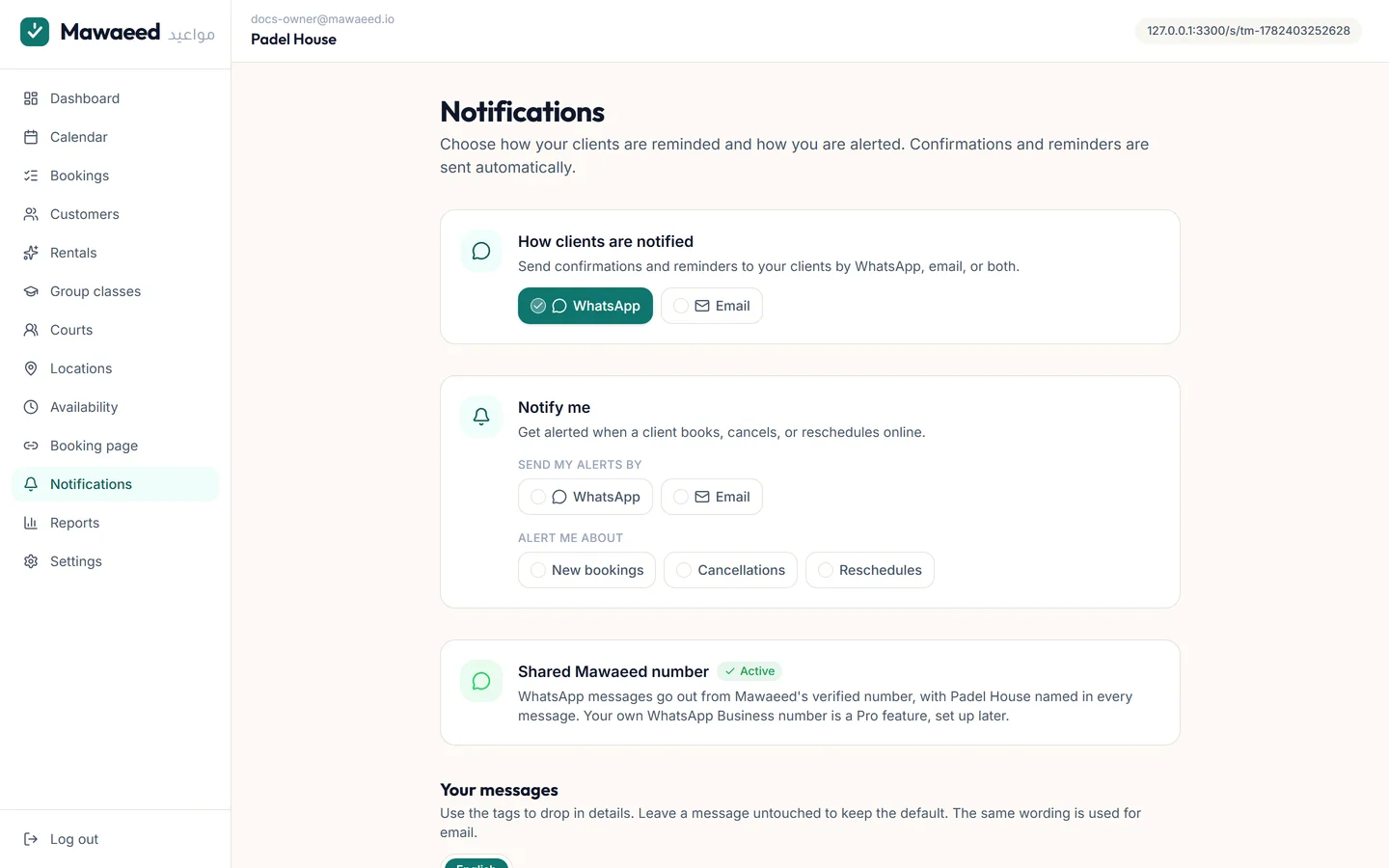
Every booking triggers a confirmation immediately, a reminder 24 hours before, another 2 hours before, and a follow-up after the visit, with your wording, in your customer's language. You get an operator alert on new bookings and cancellations. Configure all of it under Notifications.

Notification and reminder settings

Tips

  • The 24h reminder is the single biggest no-show killer, so leave it on
  • Personalize templates per message under Notifications

Group classes

Fitness classes, clinics, group lessons: many people, one session, capacity-safe.

1

Create a class with a weekly schedule

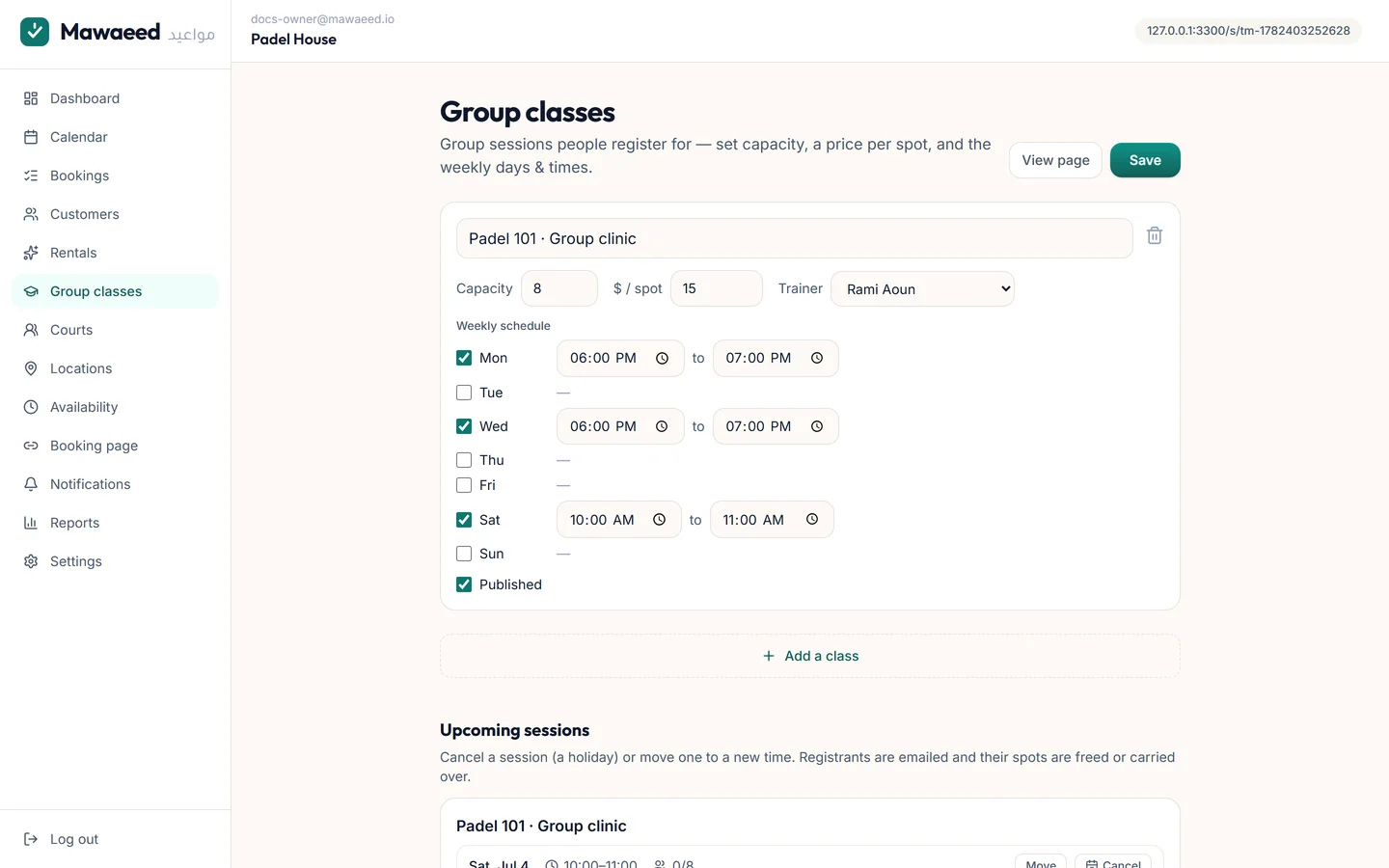
Under Group classes, create a class with a price, a capacity (say 8 spots), an optional trainer, and its weekly schedule (Mon & Wed 18:00, Sat 10:00). Sessions generate automatically every day for the weeks ahead. You never create them by hand. Cancel or move a single session and every registrant is notified automatically.

The group classes editor with weekly schedule
2

Customers register on your timetable

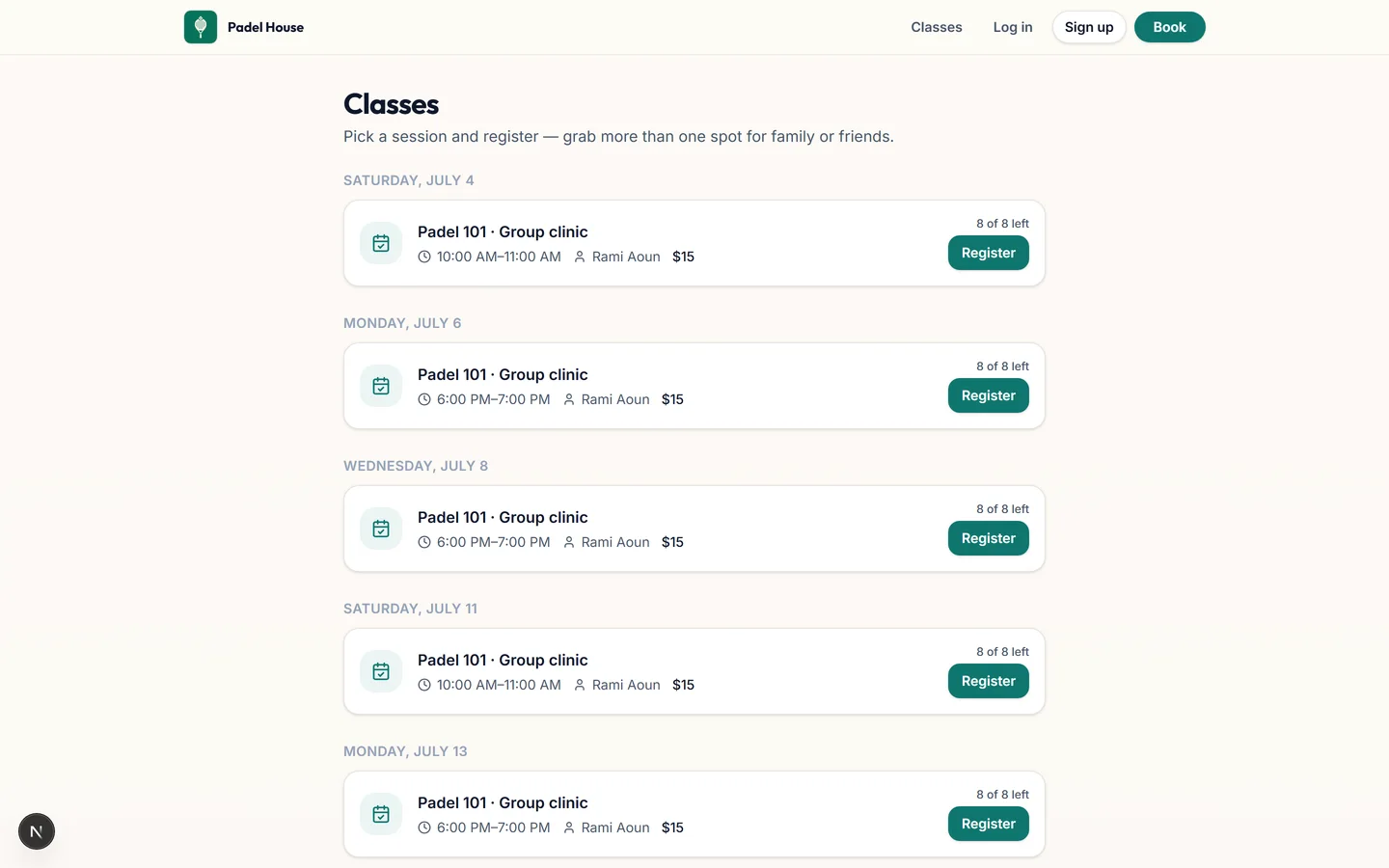
A Classes link appears on your booking page with a weekly timetable. Customers pick a session, choose how many seats, and register. Capacity is enforced down to the last spot even when two people race for it. Spots remaining show live.

The public class timetable with registration

Tips

  • Registrants can self-cancel from their confirmation link, freeing the spot
  • The trainer's calendar is blocked during sessions so 1-on-1s can't collide

Restaurants, rentals & stays

Some industries don't book by the hour, and Mawaeed speaks their language natively.

1

Table reservations (restaurants & cafés)

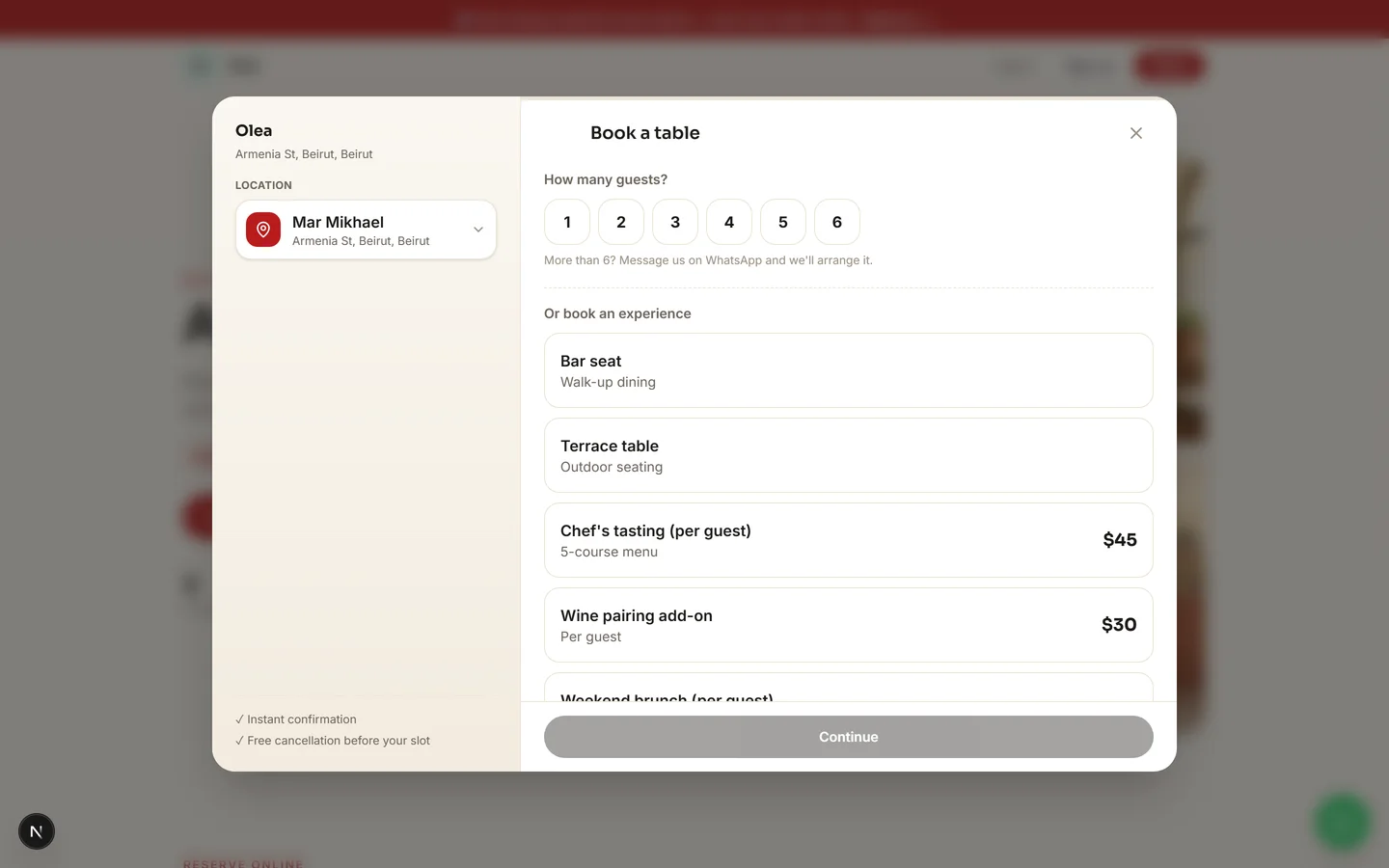
Restaurant pages open the booking modal with "How many guests?". Behind it, your actual tables (2-tops, 4-tops, bar, terrace…) are the inventory: several parties book the same 8pm on different tables, and a couple automatically gets a 4-top when the 2-tops run out. Experiences (chef's tasting, brunch, private room) are bookable right below the guest picker.

The guests-first reservation modal

Tips

  • Deposits on big tables stop no-show groups
  • Guests count lands in the booking notes for your host
2

Car rental by date range

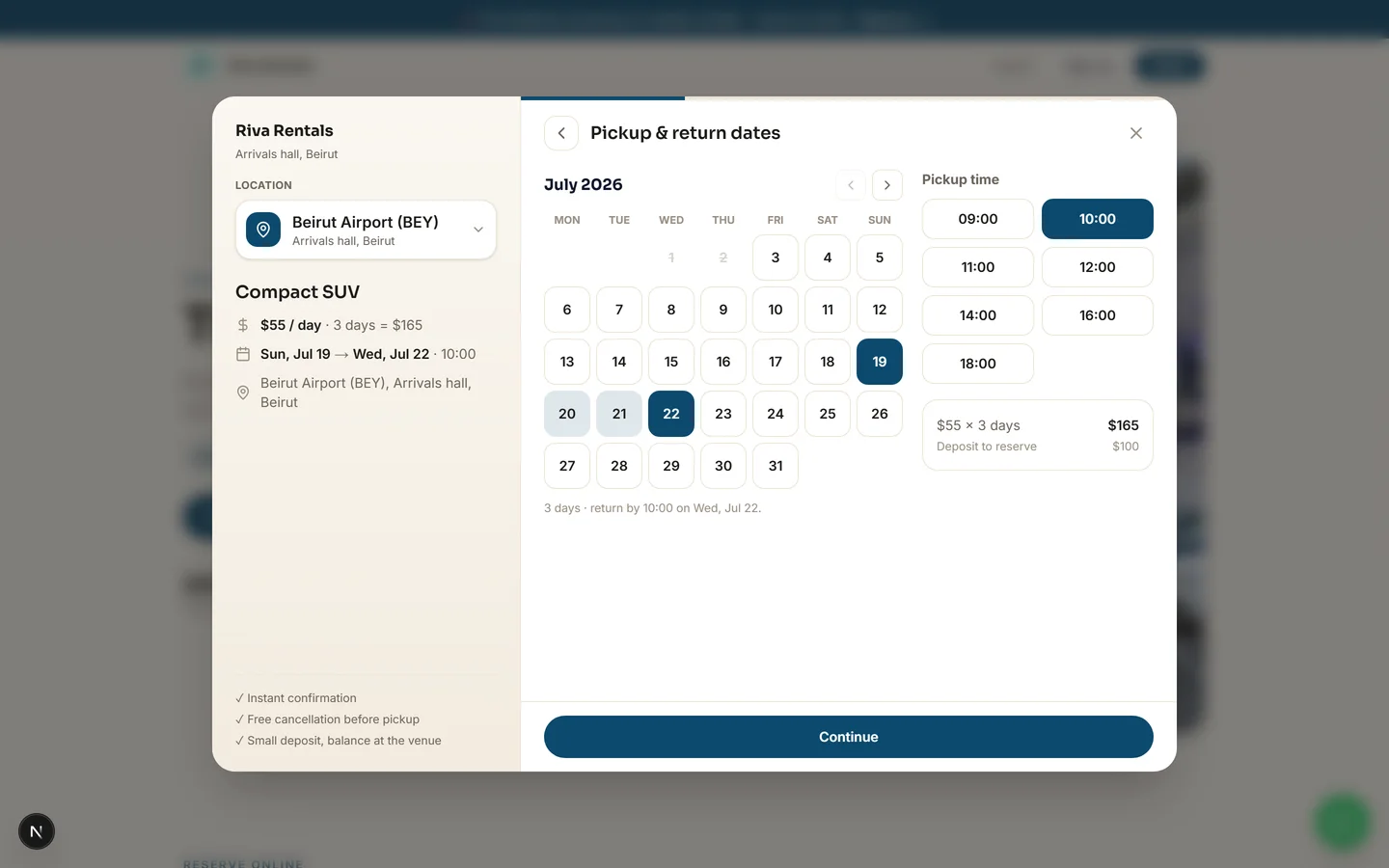
Rental pages sell by the day: the customer picks a car class, then a pickup date and a return date on the calendar. Sold-out days are struck through per class, prices multiply by the number of days, and each physical car in your fleet is tracked so a class sells out only when every unit is on the road. A car returned at 10:00 can go back out the same morning.

The pickup-to-return date range picker

Tips

  • Weekly rates and chauffeur services live in the same list
  • The deposit holds the car; the balance is settled at pickup
3

Guesthouses & stays by the night

Guesthouse pages speak hotel: guests pick a place, then check-in and checkout dates, and the price multiplies by the number of nights. Each property keeps its own availability calendar, so booked nights are struck through per place, and a room that checks out in the morning can welcome new guests the same day. List each property as a service with photos and the showcase layout does the rest.

Tips

  • Use the photo showcase services layout so each place sells with its pictures
  • The deposit secures the stay; the balance is settled at check-in

Customers & reports

Know your regulars and read your numbers.

1

The customer directory

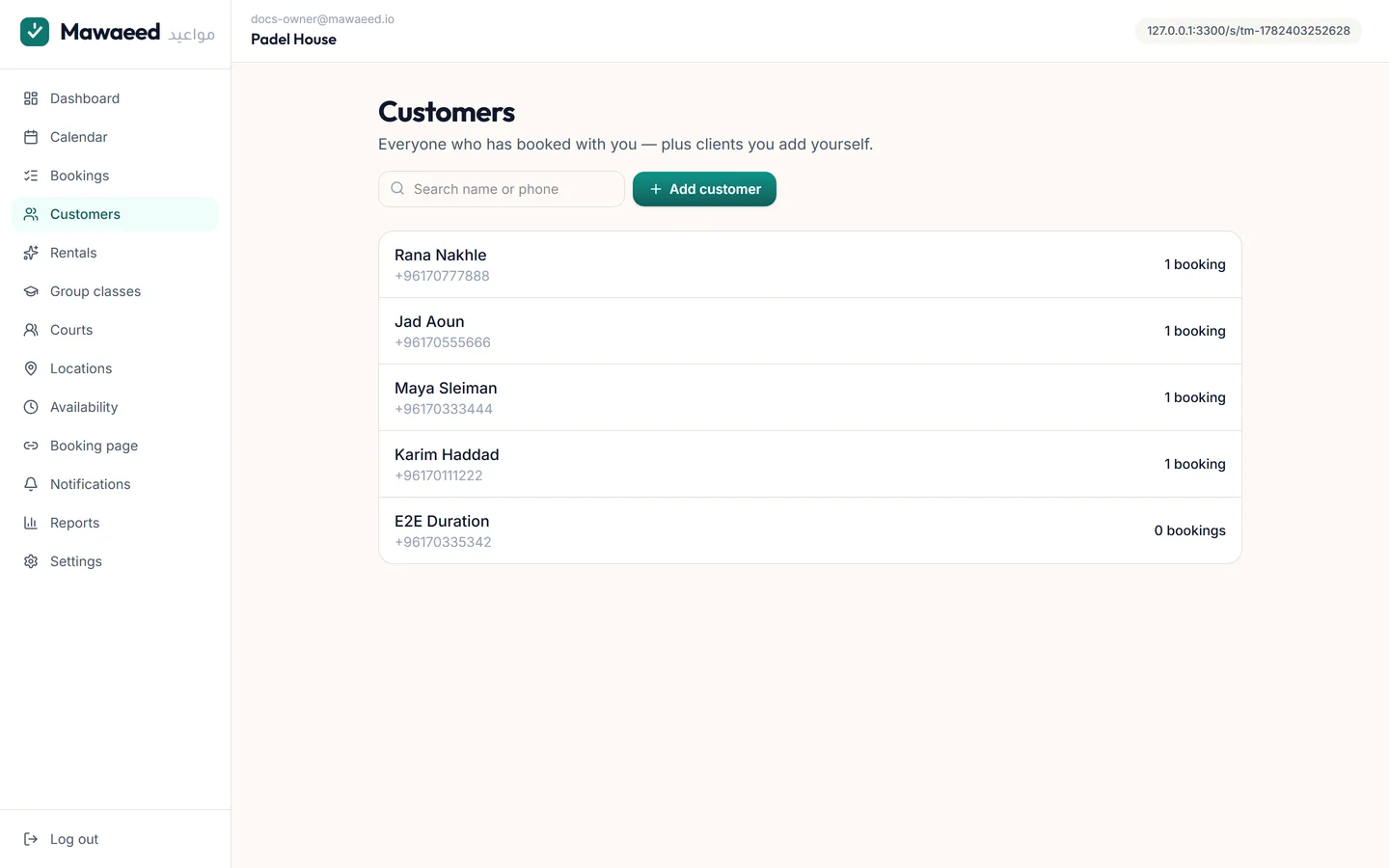
Every person who books lands here automatically with their booking history, spend, and no-show count. Add customers manually, edit their details, and keep notes ("prefers coach Lara", "allergic to nuts"). One profile per phone number, so repeat clients are recognized on every future booking.

The customer directory
2

Clients get their own account

Clients can create an account right on your booking page (or continue as guests, an account is never required). Signed in, they see their upcoming and past bookings with you, can cancel or rebook within your rules, and their name and WhatsApp are pre-filled on every future booking.

Tips

  • Guest bookings still get a manage link by email, so self-service works either way
3

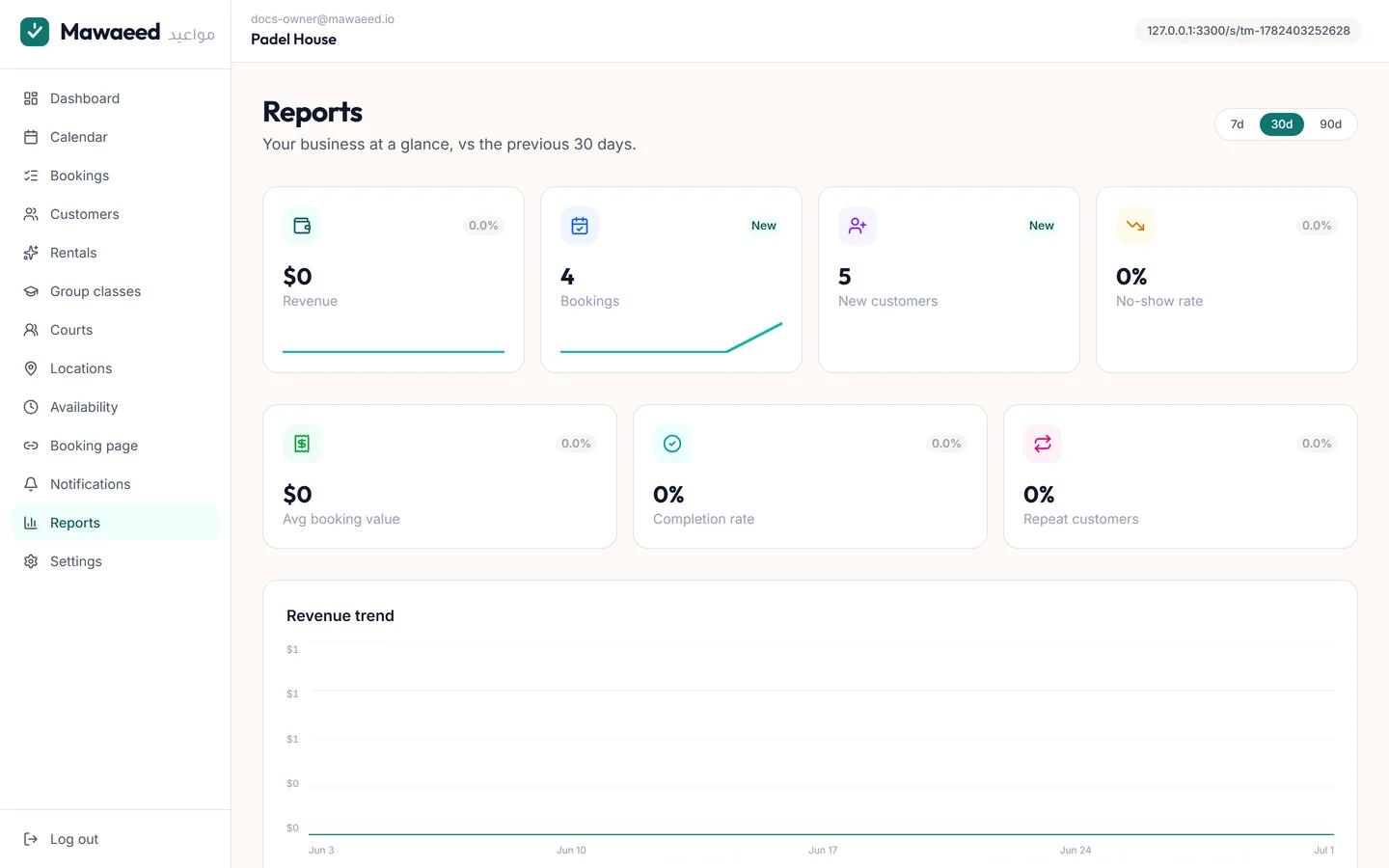
Reports

Revenue over time, bookings per service and staff member, busiest hours, new vs returning customers, and no-show rates. Pick 7/30/90 days and see how the business is actually doing.

The reports page with charts

Settings & billing

Policies, payments, wording and your plan.

1

Tune your policies and wording

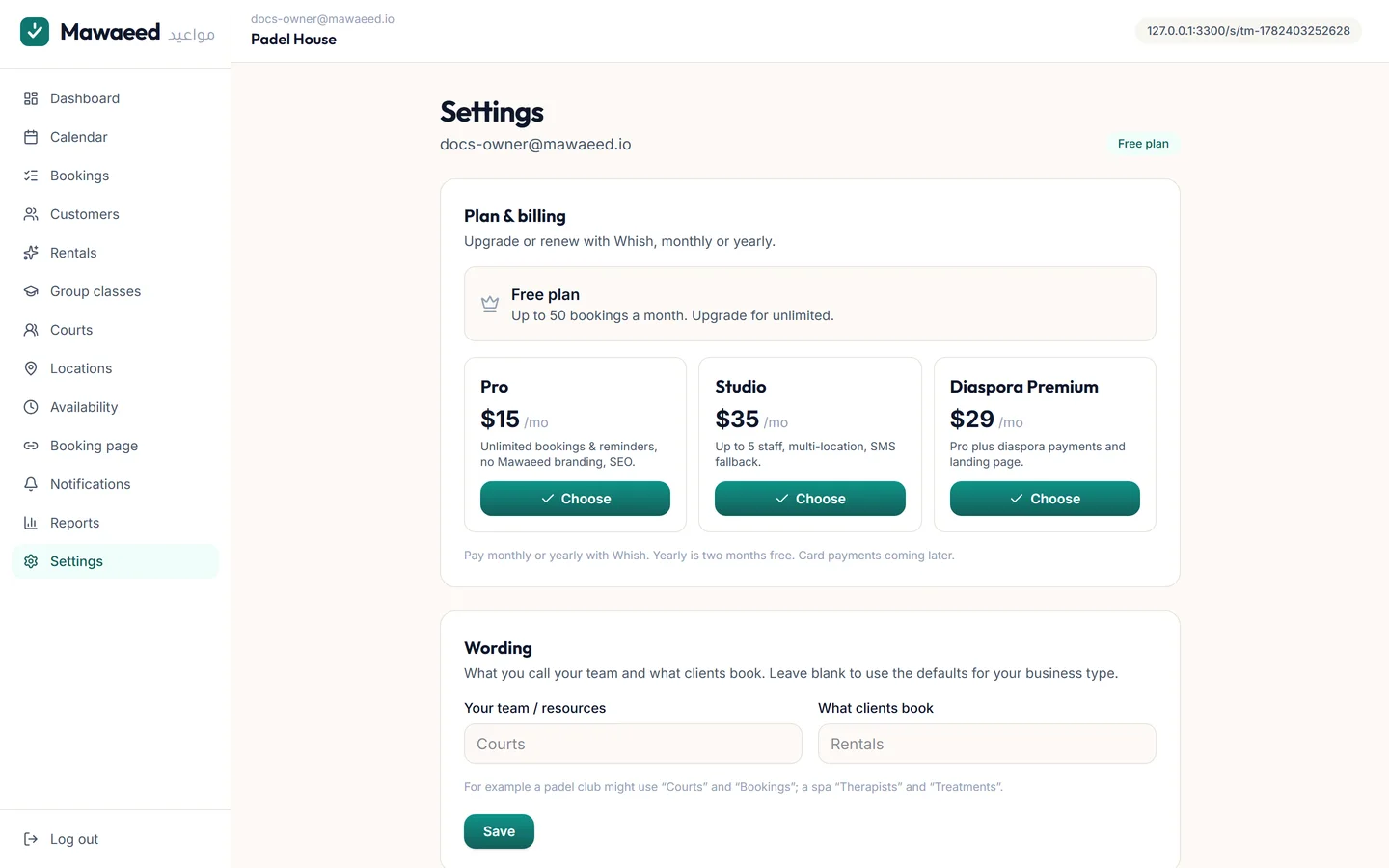
Settings holds your business profile and social handles (Instagram, TikTok, Facebook), booking rules (minimum notice, how far ahead people can book), deposits and cancellation windows, your Whish payout details, calendar connections, and the Wording panel that renames things to match your world: "Staff" becomes "Courts", "Services" becomes "Treatments".

The settings page
2

Switch on the tools you need

The Features card keeps your dashboard simple: optional tools like Group classes and Locations stay hidden until you switch them on, and you can rename how they appear in your menu ("Classes" becomes "Clinics", "Locations" becomes "Branches"). Your industry template pre-selects sensible defaults, so most businesses never think about this.

Tips

  • Turning a feature off hides it from your menu and your public page. Nothing is deleted
3

Plans

Start free and upgrade when you need more: Pro unlocks higher volumes and integrations, Studio adds the full design toolkit and branding removal. Pay by Whish transfer (confirmed within the day) and your plan renews from your dashboard.

Tips

  • Everything in this guide except branding removal works on the free plan while you get set up

ابدأ باستقبال الحجوزات اليوم

مجاناً لـ 50 حجزاً شهرياً. جاهز خلال خمس دقائق. بدون بطاقة.

ابدأ مجاناً

لديك حساب؟ سجّل الدخول